Merging pages from 2 PDFs using preview


1. Open PDFs

  • The first thing that you want to do is to open both PDFs that you want to combine in Preview.

2. Show the PDF thumbnails.

  • Click on the drop-down menu in the upper-left corner and select “Thumbnails” on each PDF.


  • A tray will open on the lefthand side of Preview, showing you the individual pages of your PDFs.


3. Click and Drag the Pages

DH2013_registration.pdf__page_1_of_2_.pngSelect the thumbnails of the PDF that you want to combine from one file—use Command-A to select them all at once—and then simply drag these thumbnails pages onto the thumbnails of the other PDF. Shazam! You’re done! Simply save the file, and go about your life.


DH2013_registration.pdf__page_2_of_2_.png


N.B. It’s important to drag the thumbnails onto the other thumbnails and not below the very thin line that appears at the end of the thumbnails. If you do the latter, you will still only have two files.





Watch the Video!  


How to Log-Out of Chrome on a Shared Computer


How to Log-Out of Chrome on a Shared Computer
The good news and bad news about the Chrome Web Browser

Good News

  • When you sign in to Chrome, all your data (like browsing history, bookmarks, and extensions) are automatically there.   This linked data  is good news because you can have the same web experience on all the different computers you may use.

Bad News

  • Chrome keeps you logged in automatically unless you purposefully sign out of Chrome.  This forced log-in is bad news because it means that the next person to use the computer will have access to all your data (like browsing history, bookmarks, extensions & possibly mail & docs).  
  • So if you are on a shared computer, you must REMOVE yourself from Chrome!


Remove from Chrome vs. Sign-Out of  Chrome

  • When you "remove a person" from Chrome, all their Chrome data will be erased from the device. This action can't be undone.
  • This is different from signing out, which stops syncing to the Google Account but keeps data on the device.
  • In both cases, if you've synced your Chrome data to a Google Account (like @lexingtonma.org), you'll be able to get it back anywhere you sign in to Chrome.


How To Remove Yourself from Chrome on a computer

  • In the top-right corner of the browser window, click the button for the current user - which is you!  (You might see your name or a picture)
  • Select Switch person.
  • You will see a box with your name on it.  If you see other names, that means other people have not removed themselves from Chrome!  
  • In the top-right corner of the person’s card, click the downward arrow.
  • Click Remove This Person.
  • Another box appears making sure you really want to remove this person - click Remove This Person.


How to Use Read & Write Chrome Extension

Read & Write Better:  How to use Read&Write for Google

What’s that purple thing?

  • When (and only when)  you are logged into your @lexingtonma account and you open your Google doc or a website, you will see the purple puzzle piece appear. Click on the puzzle piece to access the Read&Write extension.  
  • Once you click on the puzzle piece, and a series of boxes open asking you for different levels of access, you  will have to click “Yes” or “Accept” for each box in order to use this extension.  
  • After you click on all the boxes, you will then be able to use the extension.

What does it do in Google Docs?

  • As you can see from the image below, the toolbar does quite a lot!  
    • Highlight a passage, click the play button and listen to the text read out loud.
    • Highlight passages and even color code different areas with the four pens.  When you are done reading, click on the rainbow circle to collect all the highlights into a new doc, which you can share with your teacher or other students.
    • Highlight a word, click the dictionary icon and get a definition.  Then click on the bulleted list and a get a new document with all the words & definitions you highlighted!


Working with PDFs

  • The extension also allows you to work with PDFs and websites, too.  The toolbar has all of the same functionality as listed above, but with PDFs you get a bonus feature - featured in the cloud image in the pic below.
    • The bonus feature allow you to “pin” an annotation or question in a document, which places a pin image on the document, which you can share with students, with pins in place.
    • Students can click on the pin image to read your annotation or activity.  They can then click on the T icon in the toolbar to create a text box that answers the pinned question.

To use a PDF, you cannot just open the document (see below)


  • You need to access the PDF in the document list of Drive and then see the picture below:


Working with websites IN CHROME ONLY

  • Read & Write can access the same functionality on websites, too!  Plus it has an added feature that allows you to simplify the text on the site!
  • Read&Write for Google has a tool that allows you to simplify the information on a webpage and reduce it to text only without the distractions of videos and links etc.  
  • When you are in chrome, the purple puzzle piece should appear on the URL bar. Click it to make the toolbar appear. Then click the icon on the right that looks like cascading lines (see pics below)


Want more resources?  


Gmail: Create Contact Groups

Please click on this LINK to access this post as a Google Doc or read below.

Using Aspen to access Student Account Information for Google

Please click the LINK to access this post as a Google Doc.

Customizable headers and footers, page numbers in Google Docs

Customizable headers and footers, page numbers in Google Docs


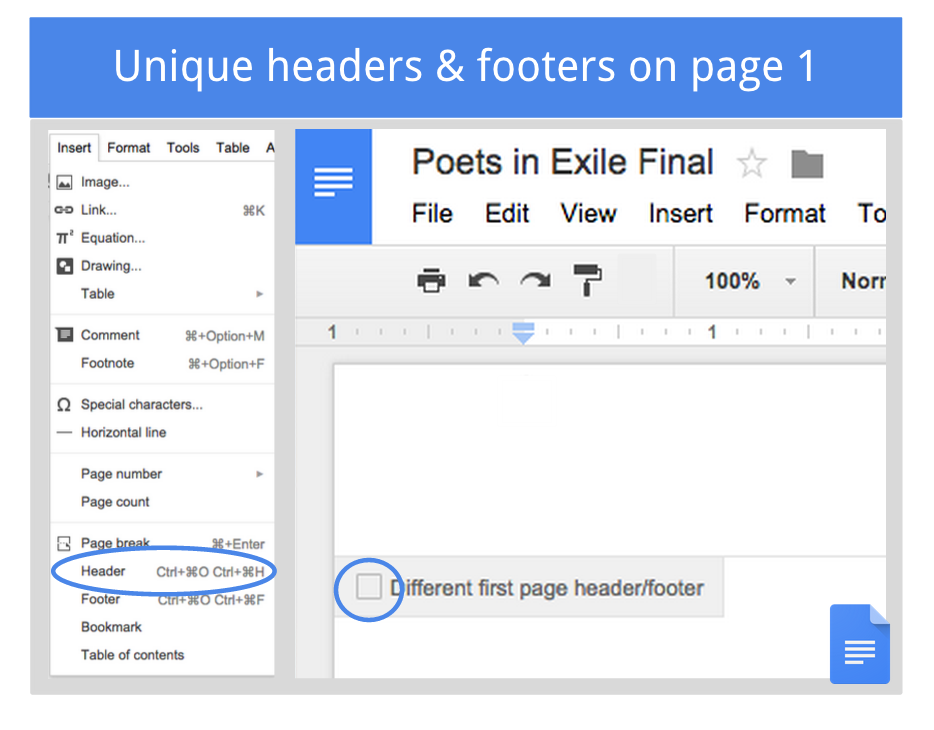
People using Google Docs can now use different headers and footers on the first pages of their documents, which comes in handy for:
  • Following academic formatting guidelines (e.g. MLA, CMS, APA)
  • Starting page numbering on the second page
  • Making a title page without headers or footers

After inserting a header or footer in your document you’ll see a new checkbox―just tick it and you’ll be able to set a different header and footer on the first page:
headers-footers.png

There’s also a new Insert > Page Number menu that lets you customize how and where you start your page numbers―like on the bottom of the second page, for example.

Want to see more like this?  Go to Google Apps Updates and sign up to be the first to know about Google updates!  

Use the Word 2004 Equation Editor with Word 2011


Many teachers have created files in Word 2004, but Word 2011 is now running on their computers.  Often the new 2011 sees equations as images from a 2004 Word document. This document will help you to simultaneously use equation editors from both Word 2004 and Word 2011.  

  • Open a 2004 Word document with equations

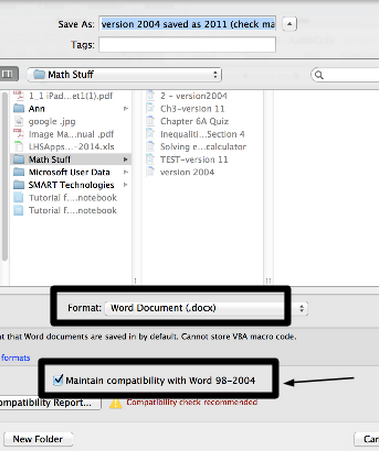
Screen Shot 2015-01-16 at 9.19.54 AM.png

  • Go to File > Save As and then scroll to the Format button.  Select .docx BUT be sure to check the box that says maintain compatibility with 2008 version.


  • Once you are in the document, double-click on  the equation and now the old equation editor box will appear.  Now you should be able to edit these equations, even though you are in a 2011 Word document.


  • In that same document, you can create new equations by using the Equation Editor tool.


Equation Editor Shortcuts

  • Sometimes the equation editor is a bit wonky, so it is easier to type in the keyboard shortcut, at times.  Here are some handy shortcuts!

Screen Shot 2015-01-16 at 10.19.23 AM.png
Screen Shot 2015-01-16 at 10.21.55 AM.png

AutoCorrect to create quicky equations

  • You can use the AutoCorrect feature that is built into Word to quickly create equations that you use all the time.  
  • Go to Word > Preferences > Equations > Math AutoCorrect
    • While in Equations, you can set preferences for how you’d like the equations to “behave” and appear for all your Word documents
  • Once you are in Math AutoCorrect, you need to make sure that all the boxes are checked (see pic below)
  • You can also discover the built-in auto corrections, which you can change to those you’d prefer.  
  • You can also create your own auto-correct tools, by typing in the Replace and With boxes (as you see in the picture below)


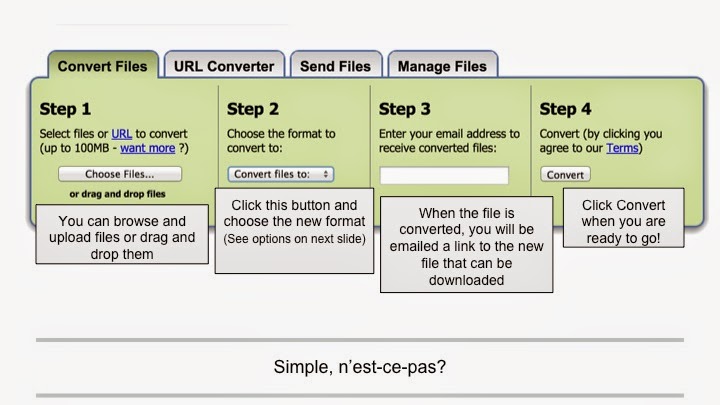
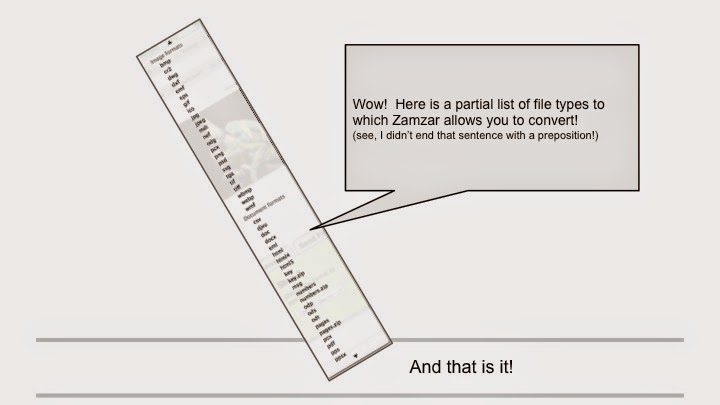
How to Convert Any File Into a Different Type (Like .mov into MP3)

 Zamzar is a file conversion site that converts a file from one type (like an MP4) to another type (like a FLV) since not every file can be used by every site or digital tool.   While you watch this movie, consider that it is a Powerpoint that I made into a movie with a simple "Save As Movie" option in the new PowerPoint!  


Or see the slides as separate pictures


How to Use the "Newish" Tech Support System

Did you know that we have a “newish”tech ticket system that will give you and the tech department more information about your request. The Tech department would prefer that everyone use this new system.   

Log-In

  • Go to the school website and click on the Help Desk icon.
  • Or you can go directly to this LINK and bookmark the webpage.  

Uploaded by Awesome Screenshot ExtensionScreen Shot 2015-01-06 at 11.25.11 AM.png

  • You will be brought to a log-in screen.  
  • Username = First Initial Last Name
    • example: shoban
  • Password = Network password
    • A word or a word followed by a number


Input Your Tech Issue

  • You will be brought to a new dialog box with fields that you will need to fill out. Some of the fields are trickier than others - see below for more additional information

Screen Shot 2015-01-06 at 11.29.02 AM.png

  • Request Type

    • Computer Problem:  Select this if you have general run of the mill tech issues - Smartboard, Elmos, computer not working properly
    • Laptop Updates:  Select this if you need an update of some sort - Flash, Adobe, Browser - etc.
    • Project: Select this if you need with a particular project that has a tech component on which you need help.
    • Staff Equipment Renewals:  Select this if you want to keep your device with you during the summer


  • Request Detail - Put all the information about your issue in this box. The more information you give, the more help Tech will be able to give


  • LPS Asset #  - This is the number that the Tech department assigns to your device.  These numbers are located underneath your computer on the blueish sticker with a bar code.  

ACCESS#.jpeg


You can also find the asset number for your devices on the ticket itself.


Scroll down to the bottom of the ticket and see “My Assets”.  Each device assigned to you is listed with the number on the left-hand side.  Put THIS number in the LPS Asset # field.


  • Attachments - Click the Add File button to add a screen-shot of your issue (not required) or any file you think will be helpful.
  • Location - Select the building and room number where the device can be accessed by the Field Technician
  • Priority - Select the urgency of your request.
  • Don’t forget to scroll to the bottom right and click SAVE!  

Next Steps

Once a ticket has been saved, the tech department begins to process it. Oftentimes, they will send you an email with additional information that you can use to solve your issue.
  • In order to NOT delete them accidentally, be sure to look for emails from “lpstechsupport”
  • If the subject line says “updated” a tech has written an update about your ticket or written a note to you with instructions.
  • You can open the email and scroll down to the bottom to find the note from the field tech.

  • Screen Shot 2015 01 06 at 1.22.23 PM.jpeg
    If you would like to view the status of your tech ticket, you can log-in to the help desk with the process above and click on TICKET HISTORY.
    • This history contains all the notes from the field techs for your case and (as you can see in the image below) its current status. 
  • Screen Shot 2015 01 06 at 2.10.33 PM.jpeg


Getting Started With Reflector in your iPad

Step 1: Open Reflector from Applications

  • Double click the Reflector file in your Applications folder to open it OR
  • You can go to the spotlight icon in the top right hand of your screen, type in Reflector, and open it from there.  (FYI-This tool is awesome for finding almost anything on your computer - applications, files, emails etc.)
    • You will not see any windows appear. Reflector runs from your dock until a device is connected.

edit

Step 2: Start a connection from your device
  • AirPlay mirroring is built into supported iOS devices. Different versions of iOS have different ways of accessing the AirPlay menu.
    • iOS 7 & 8: Swipe up to access your Control Center. The AirPlay icon will appear beside the AirDrop icon in the second row from the bottom.
    • iOS 6: Double tap the home button on your device and swipe from left to right until you see the AirPlay icon. That's one swipe for iPads, and two swipes for iPhones and iPods.
edit

Step 3: Tap the AirPlay icon, select your Mac and toggle the "Mirror" switch

mirror.jpeg

  • Tapping the AirPlay icon will present you with a list of receivers to connect to.
  • Locate and tap the one labeled as your Mac. The number will be the name as the sticker on your computer, if you have named it already.  
  • A mirror switch will appear under the computer's name. Toggle this and your device should now show on your Mac's screen.


Set 4: Set a password on Reflector Screen Shot 2014-10-14 at 12.11.57 PM.png

  • It’s important to set password on Reflector to prevent unwanted use of it (students from other classroom reflecting their device onto your computer in the middle of your class!)
  • To set a password, click on the word Reflector and then scroll down to Preferences.  
  • A new dialog box will open with lots of options (see image).
    • You can change the name of how your Mac is displayed
    • You can also choose to have your ipad reflected in full screen or with a solid background for ease of viewing.