How to Convert Any File Into a Different Type (Like .mov into MP3)

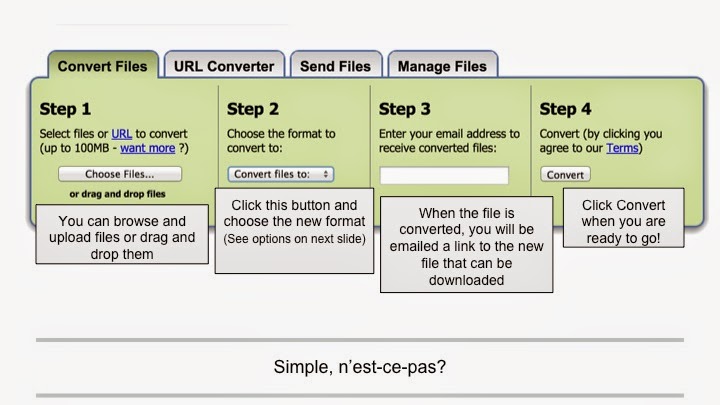
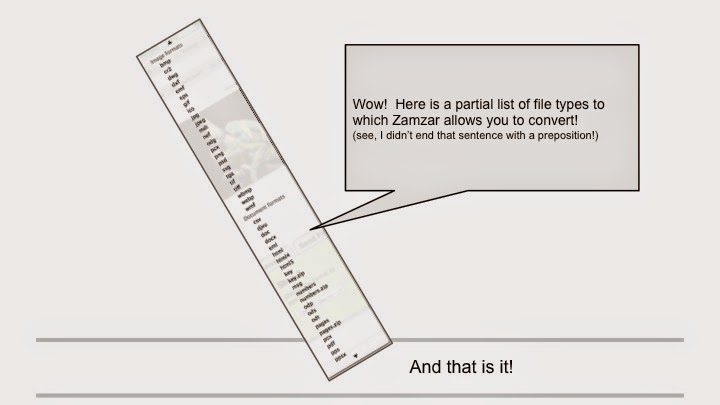
 Zamzar is a file conversion site that converts a file from one type (like an MP4) to another type (like a FLV) since not every file can be used by every site or digital tool.   While you watch this movie, consider that it is a Powerpoint that I made into a movie with a simple "Save As Movie" option in the new PowerPoint!  


Or see the slides as separate pictures


How to Use the "Newish" Tech Support System

Did you know that we have a “newish”tech ticket system that will give you and the tech department more information about your request. The Tech department would prefer that everyone use this new system.   

Log-In

  • Go to the school website and click on the Help Desk icon.
  • Or you can go directly to this LINK and bookmark the webpage.  

Uploaded by Awesome Screenshot ExtensionScreen Shot 2015-01-06 at 11.25.11 AM.png

  • You will be brought to a log-in screen.  
  • Username = First Initial Last Name
    • example: shoban
  • Password = Network password
    • A word or a word followed by a number


Input Your Tech Issue

  • You will be brought to a new dialog box with fields that you will need to fill out. Some of the fields are trickier than others - see below for more additional information

Screen Shot 2015-01-06 at 11.29.02 AM.png

  • Request Type

    • Computer Problem:  Select this if you have general run of the mill tech issues - Smartboard, Elmos, computer not working properly
    • Laptop Updates:  Select this if you need an update of some sort - Flash, Adobe, Browser - etc.
    • Project: Select this if you need with a particular project that has a tech component on which you need help.
    • Staff Equipment Renewals:  Select this if you want to keep your device with you during the summer


  • Request Detail - Put all the information about your issue in this box. The more information you give, the more help Tech will be able to give


  • LPS Asset #  - This is the number that the Tech department assigns to your device.  These numbers are located underneath your computer on the blueish sticker with a bar code.  

ACCESS#.jpeg


You can also find the asset number for your devices on the ticket itself.


Scroll down to the bottom of the ticket and see “My Assets”.  Each device assigned to you is listed with the number on the left-hand side.  Put THIS number in the LPS Asset # field.


  • Attachments - Click the Add File button to add a screen-shot of your issue (not required) or any file you think will be helpful.
  • Location - Select the building and room number where the device can be accessed by the Field Technician
  • Priority - Select the urgency of your request.
  • Don’t forget to scroll to the bottom right and click SAVE!  

Next Steps

Once a ticket has been saved, the tech department begins to process it. Oftentimes, they will send you an email with additional information that you can use to solve your issue.
  • In order to NOT delete them accidentally, be sure to look for emails from “lpstechsupport”
  • If the subject line says “updated” a tech has written an update about your ticket or written a note to you with instructions.
  • You can open the email and scroll down to the bottom to find the note from the field tech.

  • Screen Shot 2015 01 06 at 1.22.23 PM.jpeg
    If you would like to view the status of your tech ticket, you can log-in to the help desk with the process above and click on TICKET HISTORY.
    • This history contains all the notes from the field techs for your case and (as you can see in the image below) its current status. 
  • Screen Shot 2015 01 06 at 2.10.33 PM.jpeg


Getting Started With Reflector in your iPad

Step 1: Open Reflector from Applications

  • Double click the Reflector file in your Applications folder to open it OR
  • You can go to the spotlight icon in the top right hand of your screen, type in Reflector, and open it from there.  (FYI-This tool is awesome for finding almost anything on your computer - applications, files, emails etc.)
    • You will not see any windows appear. Reflector runs from your dock until a device is connected.

edit

Step 2: Start a connection from your device
  • AirPlay mirroring is built into supported iOS devices. Different versions of iOS have different ways of accessing the AirPlay menu.
    • iOS 7 & 8: Swipe up to access your Control Center. The AirPlay icon will appear beside the AirDrop icon in the second row from the bottom.
    • iOS 6: Double tap the home button on your device and swipe from left to right until you see the AirPlay icon. That's one swipe for iPads, and two swipes for iPhones and iPods.
edit

Step 3: Tap the AirPlay icon, select your Mac and toggle the "Mirror" switch

mirror.jpeg

  • Tapping the AirPlay icon will present you with a list of receivers to connect to.
  • Locate and tap the one labeled as your Mac. The number will be the name as the sticker on your computer, if you have named it already.  
  • A mirror switch will appear under the computer's name. Toggle this and your device should now show on your Mac's screen.


Set 4: Set a password on Reflector Screen Shot 2014-10-14 at 12.11.57 PM.png

  • It’s important to set password on Reflector to prevent unwanted use of it (students from other classroom reflecting their device onto your computer in the middle of your class!)
  • To set a password, click on the word Reflector and then scroll down to Preferences.  
  • A new dialog box will open with lots of options (see image).
    • You can change the name of how your Mac is displayed
    • You can also choose to have your ipad reflected in full screen or with a solid background for ease of viewing.

Google Cultural Institute

The Google Cultural Institute is a wonderful resource for students and teachers to explore a variety of topics. Once you type in a topic, the cultural institute curates a variety pack of resources, including photos, videos and documents for you and your students to study. The Cultural Institute includes the Google Art Project, which features high-resolution images of art works from museums in over 40 countries; the World Wonders Project, which presents three-dimensional recreations of world heritage sites; and archival exhibitions, many in partnership with museums around the world. (source: http://en.wikipedia.org/wiki/Google_Cultural_Institute)


This resource would work in Social Studies very well, since one focus is on Historic Moments, such as this special exhibit on Chicago during 1968 called “1968: Chicago: Law and Disorder”

Smartboard: Dual Page and Pin Tab Page


Printer Fix

Printer Fix

Oftentimes when printing to a school printer, an error message for a paused printer appears, which prevents you from printing to a school printer. This error message can be caused by a jammed printer or a printer without paper or sometimes even if someone printed something with  a font that the printer does not recognize.  Once a printer is paused, something has to unpause it before you can print again.  

To unpause the printer,  follow these instructions below:


Screen Shot 2015-01-20 at 2.05.34 PM.png

  • Click Resume in the printer dialog box.  

  • When an admin password prompt pop-ups,  input the following information:
    • Username: lhsstaff
    • Password: fused04
  • That should work to unpause the printer.  

If this does not work, your computer is missing a script that it needs, which a field technician can load onto your computer.  Please put in a tech request by clicking HERE to get that script.  

Using Google Forms as Formative Assessment