Many teachers have created files in Word 2004, but Word 2011 is now running on their computers. Often the new 2011 sees equations as images from a 2004 Word document. This document will help you to simultaneously use equation editors from both Word 2004 and Word 2011.
- Open a 2004 Word document with equations

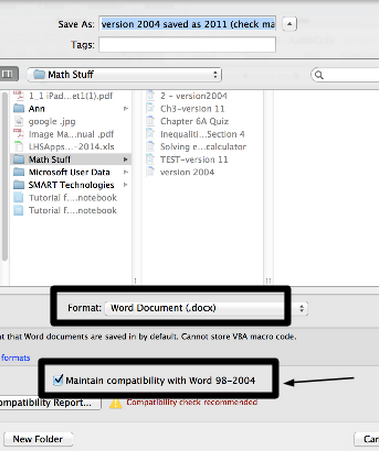
- Go to File > Save As and then scroll to the Format button. Select .docx BUT be sure to check the box that says maintain compatibility with 2008 version.
- Once you are in the document, double-click on the equation and now the old equation editor box will appear. Now you should be able to edit these equations, even though you are in a 2011 Word document.

- In that same document, you can create new equations by using the Equation Editor tool.

Equation Editor Shortcuts
- Sometimes the equation editor is a bit wonky, so it is easier to type in the keyboard shortcut, at times. Here are some handy shortcuts!


AutoCorrect to create quicky equations
- You can use the AutoCorrect feature that is built into Word to quickly create equations that you use all the time.
- Go to Word > Preferences > Equations > Math AutoCorrect
- While in Equations, you can set preferences for how you’d like the equations to “behave” and appear for all your Word documents
- Once you are in Math AutoCorrect, you need to make sure that all the boxes are checked (see pic below)
- You can also discover the built-in auto corrections, which you can change to those you’d prefer.
- You can also create your own auto-correct tools, by typing in the Replace and With boxes (as you see in the picture below)

